Page Tracker
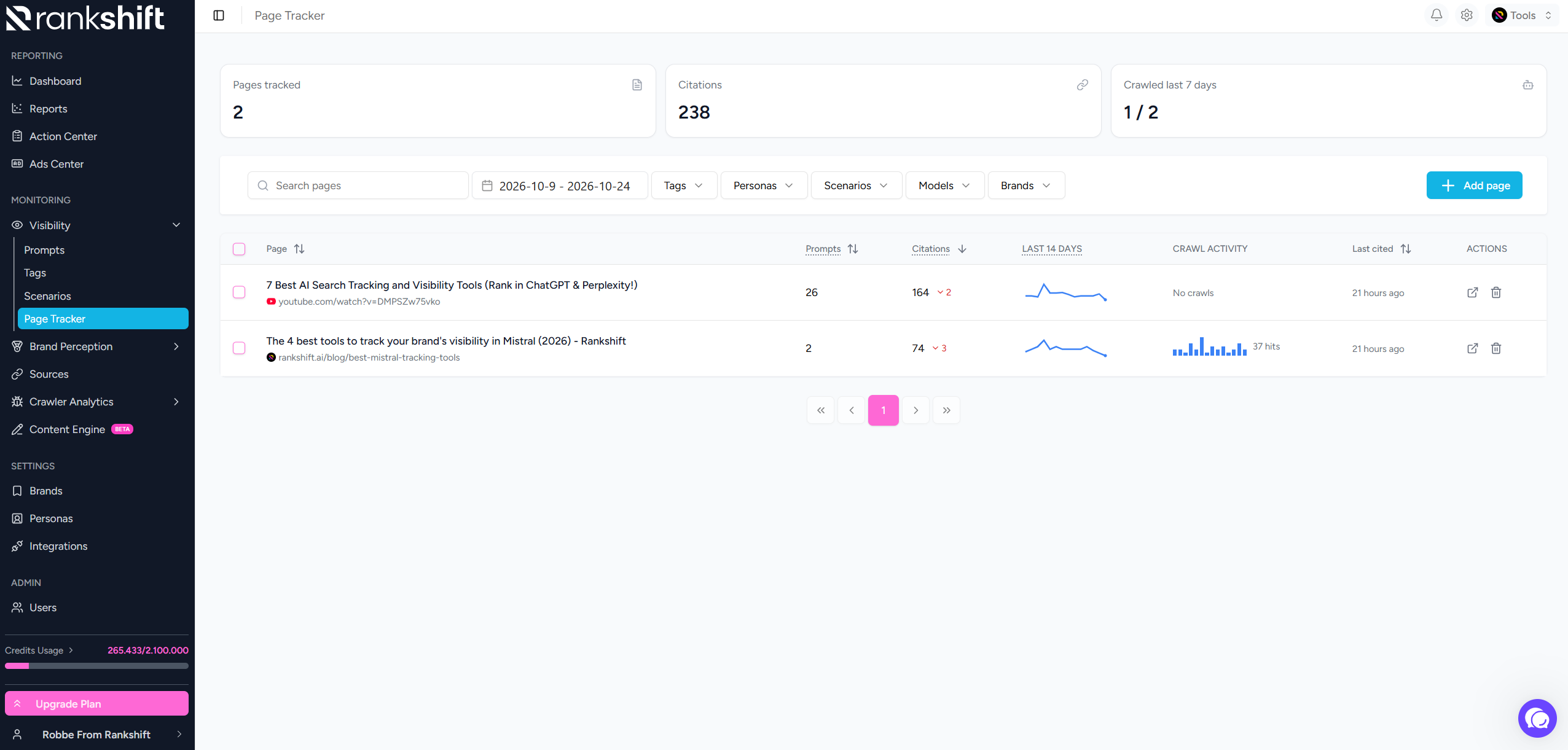
The Page Tracker lets you follow specific pages. You see citations and crawler activity. After a change, you see right away if it helped your visibility in AI answers.
Written By Rankshift
What is the Page Tracker?
With the Page Tracker, you can monitor the pages that matter most to you.
Let's say you've rewritten an article. You can track how that change impacts citations and AI crawler visits over time. Add an annotation to mark when you made the update, making it easy to see what changed and when
Adding a Page
Step 1. Click Add Page
Step 1. Click Add Page
The Add page button is at the top right of the overview. A window opens where you can add one or more pages.
Step 2. Paste Your Page Addresses
Step 2. Paste Your Page Addresses
Enter one URL per line. You can add several pages at once. Addresses without https:// also work. They automatically use HTTPS.
Step 3. Create
Step 3. Create
Empty lines are ignored. Tracking parameters and fragments (everything after #) are removed automatically.
Step 4. View Your Page In The List
Step 4. View Your Page In The List
The page appears in the overview. It starts collecting data.
You can also track external pages, such as a LinkedIn Pulse article you've published, to see how often they're cited in AI-generated responses and how that changes over time.
Understanding the Overview
The three cards at the top:
The columns in the list:
Filtering and searching
Search by page. Choose a period. Filter by Tags, Personas, Scenarios, Models and Brands. This shows you exactly what you want to compare.
Annotations and the effect of your work
Made a change to a page? Whether you've rewritten the content, added a source, or updated the structure, simply add an annotation to mark when it happened. This makes it easy to compare the data before and after your changes and see how they impacted citations and crawler visits.
Your own website or an external page?
The data you see depends on the type of page.
Crawler data is only available for your own website. You can connect it to Rankshift.
Frequently asked questions
How many pages can I add at once?
How many pages can I add at once?
As many as you like in one go. Just enter one address per line.
Do I need to type https://?
Do I need to type https://?
No. Addresses without a scheme automatically use HTTPS.
Why don't I see crawler data for my LinkedIn article?
Why don't I see crawler data for my LinkedIn article?
Crawler data is only available for your own, connected website.
Why don't I see crawler data for my own page?
Why don't I see crawler data for my own page?
Check that Crawler Analytics is activated. Also check that your website is connected.
Was this helpful?
Still need help? Ask the team